
Before you decide whether WolfPack is the right fit, we can take a look at how your marketing is performing today. This article explains what we review, what access each audit needs, and exactly how to share it.
You stay the owner of every account the whole time, and you can remove our access whenever you like.
What We Can Audit
Tell your WolfPack contact which of these you would like reviewed. You can pick one or several.
| Audit | What we look at | Access needed |
|---|---|---|
| Google Ads (including Local Services Ads) | Conversion tracking, campaign and keyword setup, wasted spend, ad copy, landing pages, bidding and budget | A link to our manager account, or a read-only user invite |
| Facebook and Instagram ads | Spend, leads, cost per lead, campaign structure and targeting | Partner access to your ad account |
| Google Business Profile | How your profile is set up and how it shows up in local search | Manager access to your profile |
| Website and SEO | Design, structure, page speed and search visibility | None. We review your public website. |
An audit is a focused review, not a line-by-line teardown. We point out the handful of things that will make the biggest difference and explain why they matter.
How to Request an Audit
- Let your WolfPack contact know which audits you would like. If you have not spoken with anyone yet, email support@wolfpackadvising.com.
- Share access using the steps below. We cannot start until the access comes through.
- Once we can see the account, a specialist for that channel reviews it.
- Your WolfPack contact walks you through what we found, in a written summary or a short video.
Audits are typically ready within 48 hours of access coming through, though this depends on our team's availability. Your Account Executive can give you a more specific timeframe.
Heads up: An audit is a snapshot in time. Platforms, algorithms and best practices change regularly, and our findings are our professional opinion based on what we see today and our experience with similar accounts. If you become a client, the action items may shift as we learn more about your needs and priorities.
What Sharing Access Means for Your Business
- Nothing changes in your account. An audit is a look, not a takeover. We do not edit campaigns, budgets, posts or settings during an audit.
- Your ads keep running as usual. Sharing access does not pause or interrupt anything.
- You stay the owner. We are added as a guest. Your logins, billing and ownership do not move.
- You can remove us any time. Each section below shows where. If you decide not to move forward, we remove our own link to your account as well.
Heads up: Please do not send us your password. Every platform below has a built-in way to share access, which is safer for you and easier to undo.
Google Ads and Local Services Ads
There are two ways to share your Google Ads account. Both let us review Search campaigns and Local Services Ads.
Option 1 (recommended): Accept a link request from us
This links your account to our manager account. It is the more secure option because access sits with our organization instead of one person's login. This type of access is not view-only, but we do not make changes during an audit.
Send your WolfPack contact your Google Ads customer ID. It is the 10-digit number at the top right of Google Ads, formatted like 123-456-7890.
We send a link request to your account.
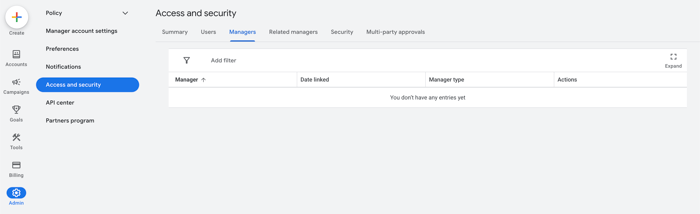
In Google Ads, click Admin, then Access and security.
Open the Managers tab and click Accept next to WolfPack Advising.
Option 2: Add us as a read-only user
Choose this if you would rather share strictly view-only access.
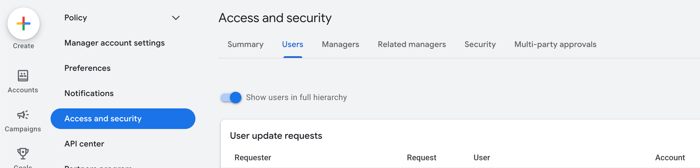
Sign in to Google Ads and click Admin in the left menu.
Click Access and security.
On the Users tab, click the blue + button.
Enter support@wolfpackadvising.com.
Select Read only.
Click Send invitation.
Let your WolfPack contact know once it is sent so we can accept it.
To remove access later, go back to Admin, then Access and security, find WolfPack Advising on the Users or Managers tab, and click Remove access.
Facebook and Instagram Ads
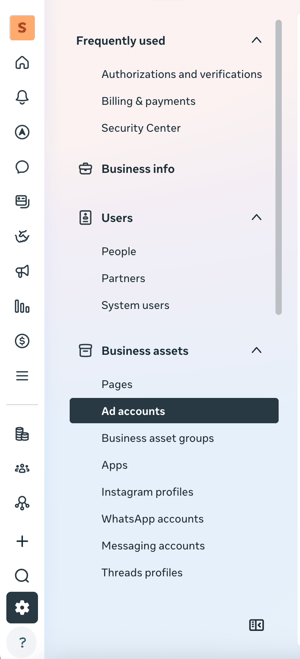
Log in to Meta Business Suite and open Business Settings.
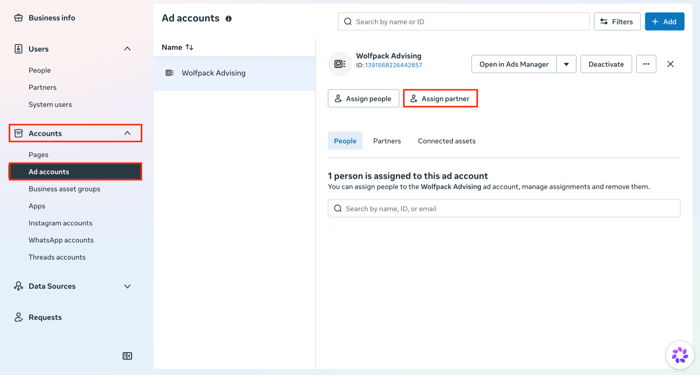
In the left menu, under Business assets, click Ad accounts. On some accounts this menu is labeled Accounts instead.
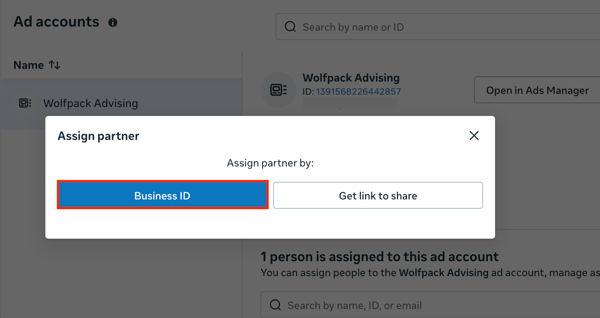
Select the ad account you want reviewed and click Assign partner.
Select Business ID.
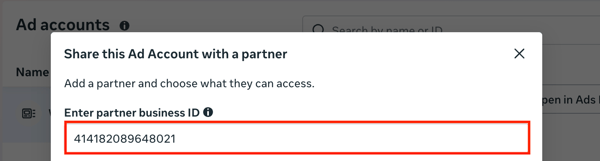
Enter our Business ID: 414182089648021.
Under Partial access, turn on View performance and click Assign. This lets us see your campaigns and results without being able to change them.
Confirm the ad account was shared. In Business Settings, go to Users, then Partners, and select WolfPack Advising. Your ad account should be listed under the assets shared with us. If it is not, click Share assets, select the ad account, turn on View performance and save.
Heads up: Make sure you share the ad account, not only your Facebook Page. Page access alone does not let us see your ad results.
To remove access later, open the same ad account in Business Settings, find WolfPack Advising on the Partners tab, and remove it.
Google Business Profile
- Go to business.google.com and sign in with the Google account that manages your profile.
- Click the three-dot menu and select Business Profile settings.
- Select People and access, then click Add.
- Instead of an email address, enter our Business Group ID: 5710534917. Select WolfPack Advising when it appears.
- Set the access level to Manager and click Invite.
Manager access lets us see your profile without taking ownership. You can remove us from the same People and access screen at any time.
Website and SEO
For most website and SEO reviews you do not need to share anything. We review your public website and how it shows up in search.
If your WolfPack contact asks for more, such as your website analytics, they will send you the exact steps.
Want a quick look on your own first?
Our free AEO Grader shows how your business appears in AI answers. Enter your company name, website and industry, and it scores your brand on ChatGPT, Gemini and Perplexity.
It is a useful starting point, but it is not the same as an audit from our team:
| AEO Grader | WolfPack audit | |
|---|---|---|
| Who does it | You run it yourself in a couple of minutes | An SEO specialist reviews your site |
| What it looks at | How AI tools recognize and describe your brand | Your website itself: design, structure, page speed and search visibility |
| What you get | A score out of 100 for each AI tool, with a key strength, a key weakness and top competitors | The handful of changes that will make the biggest difference, explained by your WolfPack contact |
| Keep in mind | Scores come from AI tools, so they can vary from one run to the next | Based on a specialist's experience with similar businesses |
Questions?
Reply to any email from your WolfPack contact, or email support@wolfpackadvising.com and we will help you through it.
Related articles: How to Add Wolfpack Advising as a Manager on Your Google Business Profile · WolfPack Service Plans at a Glance · What to Expect When Launching a Google Search Ads Campaign