
The Lead Analysis tab in My WolfPack shows you what is happening to your leads after they come in. It pulls together your tracked calls and forms and answers the questions most owners ask: how many leads are we closing, how many calls are we missing, what are callers asking, and who still needs a call back.
This article walks through each section of the tab, how the numbers are worked out, and what you can do to keep them accurate.
Heads up: Lead Analysis is part of Lead Center Advanced. For a limited time, it is turned on for every client with an active Lead Center, on any plan.
Where to find it
- Sign in to My WolfPack.
- Click Leads in the menu.
- Click the Lead Analysis tab, next to the Leads tab.
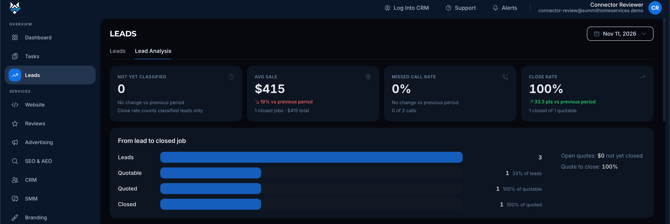
Use the date dropdown at the top right to pick Last 7 days, Last 30 days, Last 90 days, or a specific month. Turn on compare to see each headline number next to the previous period.
Heads up: Lead Analysis follows the date range only. Filters you set on the Leads tab do not carry over. Spam and duplicate leads are always left out.
What each section shows
| Section | What it tells you |
|---|---|
| Headline cards | Not Yet Classified, Avg Sale, Missed Call Rate, and Close Rate for the date range. |
| From lead to closed job | How many leads were quotable, quoted, and closed, plus your open quotes (dollars quoted that have not closed yet) and your quote to close rate. |
| Close rate by | Your results broken out by channel, source, lead type, or service requested. Click a column header to sort. |
| Close rate by office rep | Answered, quotable, and closed calls, sales, and close rate for each person who answers your phones. |
| Missed calls | How your calls ended (answered, voicemail, or missed), a chart of calls by hour of day or day of week, and a list of callers who didn't get through. |
| What callers say | How calls ended, the objections on calls that did not book, and the questions callers ask most. Click a row to see examples. |
| Calls that need follow-up | Quotable calls that ended without a booking and have not been closed, each with a short summary of the call. |
| Office rep coaching | Call counts, close rate, bookings made on the call, and an average call handling score out of 5 for each rep, plus the coaching report. |
| Call analysis status | Whether call analysis is on, and how many calls have been analyzed. |
How the numbers are calculated
Lead Analysis is built on three fields you (or your team) set on each lead in the Leads tab: Quotable, Quote value, and Sales value.
- Quotable: a lead marked Quotable.
- Quoted: a quotable lead with a quote value entered.
- Closed: a quotable lead with a sales value entered.
- Close Rate: closed leads divided by quotable leads. Leads marked Not Quotable or still Pending are not part of the math.
- Quote to close: closed leads divided by quoted leads.
- Not Yet Classified: leads that have not been marked Quotable or Not Quotable yet.
- Missed Call Rate: missed calls plus voicemails, divided by all calls that were answered, missed, or went to voicemail.
A call that was not answered and lasted under 10 seconds is treated as a quick hang-up. It does not count as a missed call. A note under the call outcomes shows how many were set aside.
Tip: Check Not Yet Classified first. If that number is high, your Close Rate is based on only a small share of your leads. The more leads you classify, the more you can trust the rest of the tab.
Work your follow-up lists
Two lists on the tab work as a call-back list for your office:
- Calls that need follow-up: people who were a good fit but did not book.
- Callers who didn't get through: people who reached voicemail or no answer. Each caller is listed once. "Got through on a later call" means the same number reached a person within 7 days.
Each row has two buttons:
- Click Followed up once you have called the person back.
- Click No follow-up needed if no call back is required.
Either button clears that caller from both lists. If you click one by mistake, click Undo on the confirmation message right away. Once that message is gone, the row cannot be brought back. If a cleared caller misses you again, they return to the list.
Heads up: My WolfPack only sees calls made on your tracked numbers. If you call someone back from a cell phone or another line, the caller can still show as never reached. Click Followed up on that row to clear it.
Office reps and the coaching report
The office rep sections only appear once your reps are set up.
- Go to Settings, then Office Reps.
- Add each person who answers your phones.
- Add nicknames as aliases (for example, "Mike" for Michael) so calls are matched to the right person.
Calls are matched to a rep by the name used on the call. A new name is added on its own after it is heard on two calls. Calls with no match show as Unassigned. A manager can also set Answered By on an individual lead, and that choice always wins.
The coaching report
In Office rep coaching, click Generate coaching report. Once a report exists, the button changes to Refresh report.
The report covers the date range you have selected. Each rep gets a verdict (Performing well, Room to improve, or Needs attention), a short summary, what is working, and how to improve.
- A rep needs at least 3 analyzed calls in the date range to be included.
- Only the billing admin on your account can generate the report. Everyone on your account can read it.
Keep your numbers accurate
Lead Analysis is only as good as what goes into it. Four habits keep it useful:
- Set Quotable on every lead.
- Enter Quote value when you send a quote and Sales value when the job closes.
- Work the two follow-up lists and clear each row as you go.
- Keep Office Reps up to date, with nicknames added as aliases.
Tip: A lower close rate on channels like Social or Email does not always mean the channel is not working. People often find you on one channel and call later through another. Your specialist team can help you read these numbers.
Troubleshooting
| What you see | What to do |
|---|---|
| You don't see the Lead Analysis tab | The tab needs an active Lead Center. Reach out to your specialist team and we will check your account. |
| Close Rate is blank or looks off | Check Not Yet Classified. Classify your leads and enter quote and sales values. |
| "Objection and question tracking starts with newly analyzed calls." | No calls in this date range have the detailed analysis yet. Pick a wider date range or check back after new calls come in. |
| No office rep sections | Add your reps in Settings, then Office Reps. |
| Many calls show as Unassigned | Add nicknames as aliases in Office Reps, or set Answered By on the lead. |
| A caller you called back still shows as never reached | The call back was made from a line that is not tracked. Click Followed up on that row. |
| The Generate coaching report button is missing | Ask your billing admin to generate it, or pick a wider date range. |
| Call analysis status shows Paused | Nothing you need to do. Our team is notified and analysis picks back up on its own. |
| "Couldn't load lead analysis. Try again." | Click Retry. If it keeps happening, let your specialist team know. |
Frequently asked questions
Which calls are analyzed? Every answered phone call with a transcript is analyzed automatically, usually within a few minutes. Form submissions and calls without a usable transcript are not analyzed, but they still count as leads.
Who on my team can see this tab? Anyone with access to your company in My WolfPack can see the tab and use the follow-up buttons.
Does the tab show how fast we respond to leads? Not as its own report. The closest number is in Callers who didn't get through, which shows how long it typically takes for a missed caller to reach a person on a later call.
Is this the same as the Leads tab? No. The Leads tab is where you open individual leads, listen to calls, and set Quotable, Quote value, and Sales value. Lead Analysis summarizes all of those leads into trends.
Questions?
Reach out to your WolfPack specialist team through My WolfPack or by replying to any email from the team.
Related articles: Lead Center Overview - How Your Leads Are Tracked and Reviewed · Lead Intelligence Overview - How AI Reviews and Scores Your Leads · How to Improve Your Close Rate on Ad Leads - Phone Handling, Scripts, and Settings · How To Connect Claude, ChatGPT And Others To Your WolfPack Data (AI Assistants)