
Your Lead Center is where every lead your marketing generates gets tracked, recorded, and reviewed in one place. This article walks you through what feeds into it, what you'll see on an individual lead, and how to read the statuses and charts in your account. It's written for anyone on your team who wants to understand how your leads are being tracked and what the numbers mean.
What the Lead Center Does
Your Lead Center works by dynamically swapping the phone numbers shown on your website with tracking numbers, based on where each visitor came from. It also monitors your website's form submissions. That combination lets your WolfPack specialist team trace every call and form fill back to the marketing source that produced it, whether that's a Google Ads campaign, a Facebook ad, an organic search, or a direct visit.
Heads up: Because tracking numbers are swapped in dynamically, the phone number a visitor sees may differ slightly from your main business line. This is expected and is what makes source-level tracking possible.
This source-level view is what makes it possible to calculate your actual return on investment for each advertising channel, rather than just knowing how many people clicked an ad.
Where Your Leads Come From
Your Lead Center pulls leads in from several channels:
- Phone calls: Calls to your tracking numbers are recorded and linked back to the source that generated them.
- Web forms: Submissions from forms on your website are captured automatically.
- Text messages and chats: Messages sent through tracked numbers or website chat are logged as leads.
- Ads: Leads generated through paid channels like Google Ads and Facebook are tagged with their source so you can see which campaigns are producing results.
Every lead that comes in through one of these channels gets its own record inside your Lead Center.
What a Lead Record Shows You
When you open an individual lead, you'll typically see:
- Source: Which channel and campaign generated the lead.
- Call recording and transcript: For phone leads, a recording and text transcript of the call.
- Status: Whether the lead has been reviewed and what the outcome was.
- Quote value: How much the job was quoted for, once that information is available.
- Sales value: How much the job actually sold for, once it closes.
- Notes: Context added during review, such as why a lead was or wasn't a fit.
This gives you a single place to see not just how many leads came in, but what happened to them.
Understanding Lead Statuses
Leads move through a review process before they're counted toward your results. The two outcome statuses you'll see most often are:
| Status | What it means |
|---|---|
| Quotable | The lead is looking for a service you offer, within the service area you cover. This applies whether the caller is a new prospect or an existing customer requesting a new job. |
| Not Quotable | The lead is spam, is asking for a service you don't offer, or is located outside your service area. |
Important: Whether a caller is new or has worked with you before doesn't decide quotability on its own. What matters is whether they're requesting a service you provide, in an area you serve.
New leads that haven't been reviewed yet, either by your automated review tools or by a member of your specialist team, will generally show as pending review until a quotable or not quotable status has been assigned. Ask your WolfPack specialist team if you want a walkthrough of how a specific lead was categorized.
Reading the Leads Over Time Chart
Your Lead Center includes a chart that shows lead volume across a date range you select. Use it to spot trends, such as whether a campaign change increased or decreased the number of leads coming in, and to compare periods month over month. If you want help interpreting a specific spike or drop, your WolfPack specialist team can walk through it with you.
Getting Set Up and Adding Users
When you sign on for advertising services with WolfPack, a Lead Center account is created for you automatically, and your existing contacts are invited to join. If you need to add another user to your account, reach out to your WolfPack specialist team and they'll get that set up.
Live data vs. sample data: check this first
New Lead Center accounts sometimes open with the Sample Data view switched on. Sample data is placeholder data that shows what your dashboard will look like once real leads come in; it is not your leads. The toggle sits in the top right of the Dashboard and says either Live Data or Sample Data. If the numbers you see do not match what you know about your business, check that toggle before anything else. Switch it to Live Data and the dashboard shows only leads that actually came in.
Heads up: this one setting has caused real confusion before. If you ever think your numbers look too good, or too empty, to be true, check the toggle first and then ask your specialist.

Customizing your columns
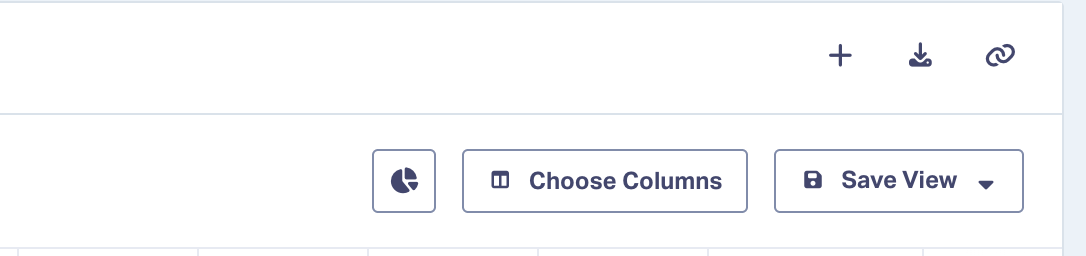
The leads table does not show every field by default, so you may not see Quote Value or Sales Value until you turn them on. Use the Choose Columns option above the leads table to pick which fields appear. To match the view your specialist team uses when reporting, turn on the same columns they use. Your column choices save to your login, so you only need to do this once.
Signing in and two-factor authentication
Your Lead Center requires a two-factor authentication code at sign-in. This protects your lead and customer data and cannot be turned off. You can make it less frequent: when the code prompt appears, choose the option to remember or trust this device, and that browser will not ask again for a while. You will still be asked on a new device or after clearing your browser data.
Frequently asked questions
Do I need to do anything to start tracking leads? No. Your Lead Center account is created and connected automatically when you sign on for advertising services.
Can I see which ad or campaign a lead came from? Yes. Each lead record shows the source it came from, which is what allows return on investment to be calculated by channel.
What if I think a lead was miscategorized? Reach out to your WolfPack specialist team. They can review the call or form entry with you and make any needed correction.
I am getting spam calls on my tracking number. What can you do? Some, but not everything. See Lead Tracking Numbers: How They Work and What They Cost for exactly what we can and cannot control.
Questions?
Your WolfPack specialist team is happy to walk through your Lead Center with you. Reach out anytime with questions about a specific lead or your setup.
Related articles: Lead Intelligence Overview: How AI Reviews and Scores Your Leads · Lead Qualification: How It Works and What It Costs · Lead Tracking Numbers: How They Work and What They Cost