-1-1.png?width=175&height=41&name=logo-rectangular-on-white%20(3)-1-1.png)
This article is for anyone with a login to the Customer Portal. Company-wide details such as your business profile, service area, and competitors live under Settings in the left menu instead. See the related article below.
Where to find Personal Settings
- Sign in to your Customer Portal at my.wolfpackadvising.com.
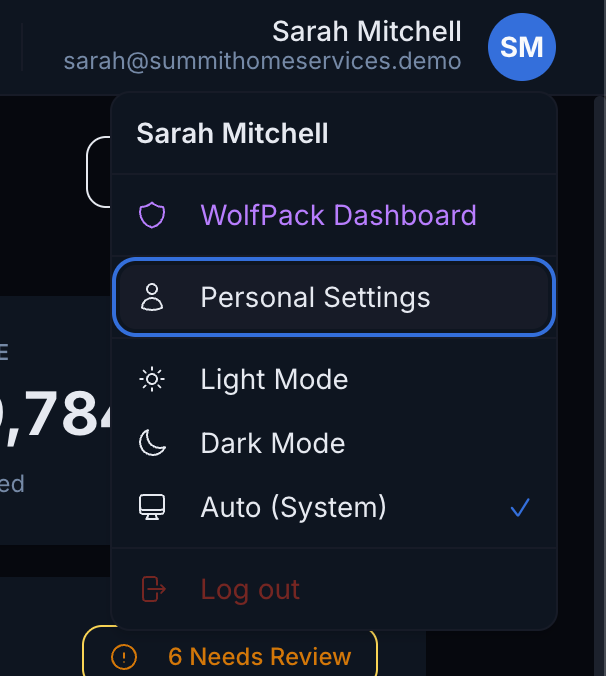
- Click your avatar or initials in the top right corner.
- Choose Personal Settings.
You can also open the notification section directly from the bell icon: click the bell, then Notification settings at the bottom of the panel.
Update your profile information
The Profile Information card holds your personal details.
- Edit your First Name, Last Name, or Mobile Phone Number.
- To add or swap a photo, click Upload Photo or Change Photo. PNG, JPEG, or WebP files up to 5MB work.
- Click Save Changes.
Heads up: Your email address is your login and cannot be edited here. If you need to sign in with a different email, reach out to your specialist team and they will update it for you.
Your mobile number is also used for text-message two-factor authentication, so keep it current if you turn that on.
Change your password
- Scroll to the Password card.
- Enter your Current password, then your New password and Confirm new password. New passwords need at least 8 characters.
- Click Update password.
If you have forgotten your password, sign out and use the reset link on the sign-in page instead.
Turn on two-factor authentication
Two-factor authentication (2FA) adds a second check when you sign in, so a password alone is not enough to get into your account. We recommend turning it on. You will see a reminder banner in the portal until you do; Set up now on that banner takes you straight to the Security card.
You can choose either method, or both:
| Method | How it works | How to turn it on |
|---|---|---|
| Authenticator App (Passcode 2FA) | A 6-digit code from an app such as Google Authenticator or Authy | Click Enable Passcode 2FA and scan the QR code with your app |
| SMS Two-Factor Authentication | A one-time code texted to your mobile number | Click Enable SMS 2FA and confirm the code we text you |
Once a method is on, a Recovery Codes row appears. These are one-time backup codes for when you cannot reach your authenticator app or phone. Download them and keep them somewhere safe. You can click Regenerate Codes at any time to replace them.
Tip: Turning 2FA off again asks for your password first. Only do this if you are switching methods or changing devices.
Choose your notification preferences
The Notification Preferences card lets you decide which kinds of notifications you receive and where they show up. Each row has a Portal checkbox for alerts under the bell icon and an Email checkbox for messages to your inbox.
| Notification type | What it covers | Portal | |
|---|---|---|---|
| Service updates | New updates from your WolfPack team about your services | Yes | Yes |
| Billing | Invoice receipts and failed payments. Expiring-card reminders appear in the portal only | Yes | Yes |
| Support requests | Replies to your support requests. Status changes appear in the portal only | Yes | Yes |
| Review requests | Negative customer feedback and review requests that could not be delivered | Yes | Portal only |
To make a change:
- Check or uncheck the boxes you want.
- Click Save Preferences. You will see a "Notification preferences saved" confirmation.
A dash in a column means that type is not offered on that channel. The Review requests row only appears if your company uses our Review Requests service.
Heads up: Preferences are personal. Turning off an email for yourself does not turn it off for your teammates, and everything is on by default for new users. If someone on your team should stop getting a type of email, they can change it from their own Personal Settings.
Notifications that are always sent
For your account's security, a few messages cannot be turned off. These are always sent by email:
- Security codes for signing in
- Password resets
- Team invitations
- Notices about a service ending
If you are not receiving one of these, check your spam folder first, then contact your specialist team.
Questions?
Reach out to your WolfPack specialist team through your Customer Portal or by replying to any email from the team.
Related articles: How to Update Your Company Settings & Notify Your Specialist Team · How to Add or Remove Team Members in Your Customer Portal · Review Requests: How Automated Review Requests Work