-1-1.png?width=175&height=41&name=logo-rectangular-on-white%20(3)-1-1.png)
It's for any client who needs to change company details, business profile information, service areas, or competitors on file.
Quick Overview
When you update your company's information in the Customer Portal, your specialist team is automatically notified through your account record. There's no need to send separate emails or messages: the system handles the notification automatically.
Where to Update Your Information
- Log into the Customer Portal.
- Navigate to Settings in the left-hand navigation.
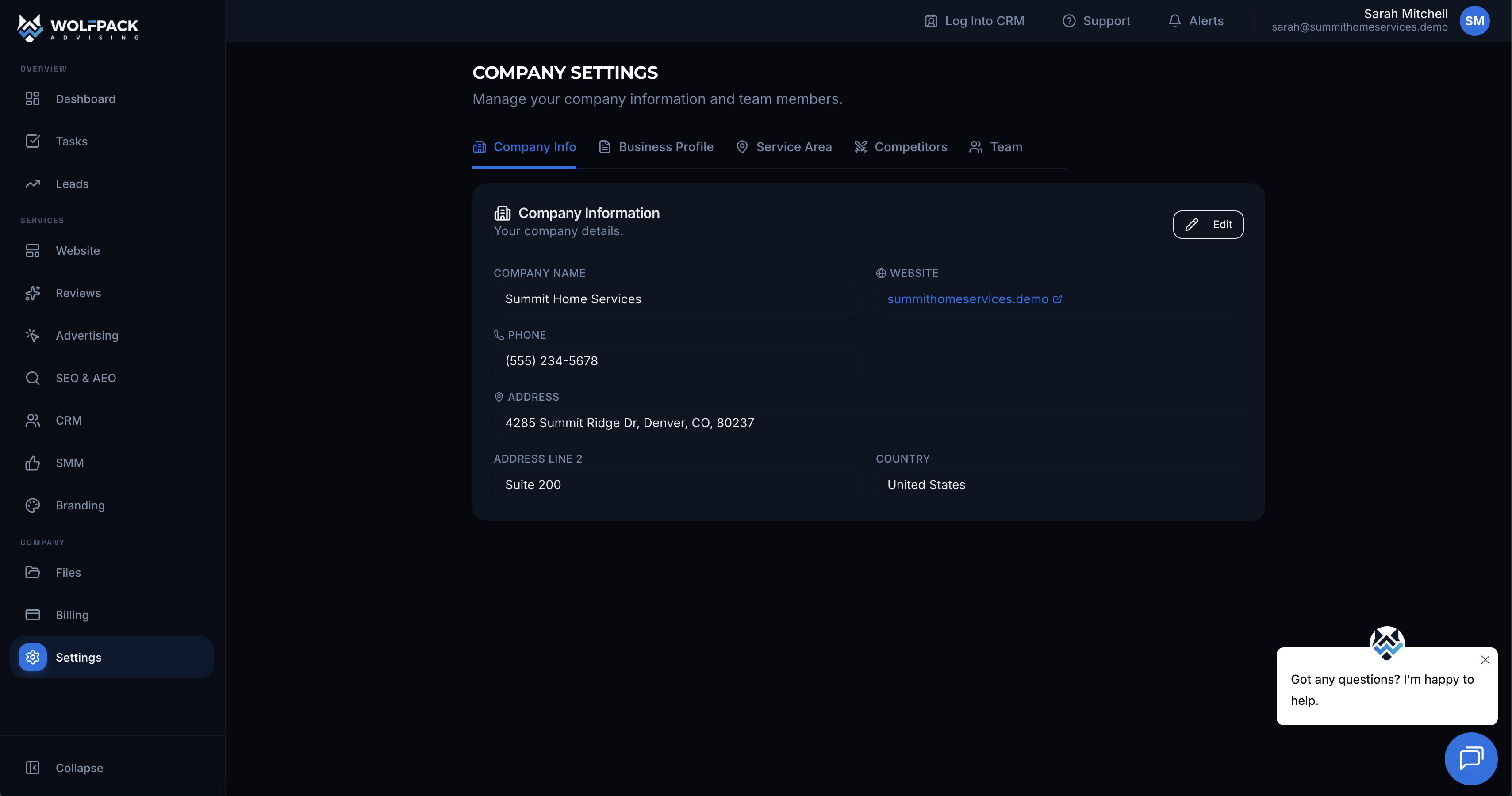
- Choose which information you'd like to update:
- Company info: Basic details like name, address, phone number.
- Business profile: Description, industry, company size.
- Service area: Geographic locations you serve.
- Competitors: Your main competitors (for competitive analysis).
- Make your changes and click Save.
That's it! Your specialist team will be notified right away.
What Happens Next?
Your specialist team will:
- Review the update.
- Take any necessary action based on your changes (like adjusting service areas or updating their records).
- Reach out if they need clarification on any changes.
You don't need to do anything else. The notification is automatic. Just save your changes and your team is informed.
Questions?
If you have questions about updating your information or need help locating a specific field, reach out to your WolfPack specialist team through the Customer Portal or by replying to any email from the team.
Need to update something else? Check with your specialist. They can help you with changes needed in other areas of your account.
Related articles: Understanding Google Business Profile Address Guidelines & Eligibility · Understanding Organic Traffic: What It Means & Why It Matters